
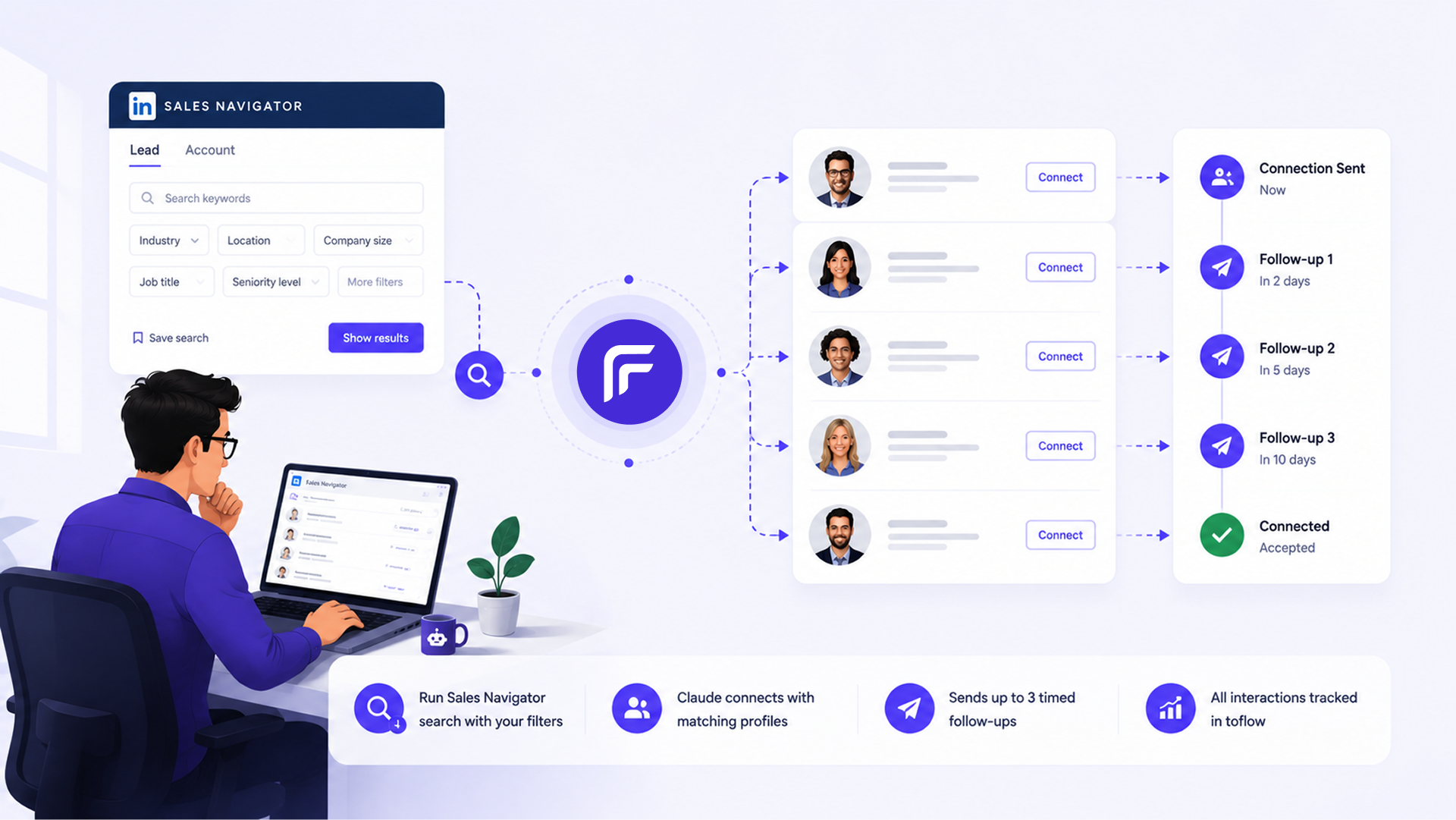
Sales Navigator gives you precision filters that classic LinkedIn search cannot match: intent signals, job change recency, company growth data, headcount ranges, and account lists. The problem is that pulling results out of Sales Navigator and turning them into outreach still requires multiple tools and manual steps.
This workflow removes those steps. Claude runs your Sales Navigator search, extracts matching profiles into toflow, sends personalized connection requests, and follows up automatically once a request is accepted.
How to connect toflow with Claude
toflow.ai has a built-in MCP server that lets Claude control your Sales Navigator outreach directly. It works with Claude Desktop, Cursor, Windsurf, or any MCP-compatible client.
Step 1: Connect your LinkedIn account to toflow
Log into the toflow app and go to Settings, then Accounts, then Connect LinkedIn. Connect the account that has Sales Navigator. This is the account Claude will use to run searches and send connection requests on your behalf.
Step 2: Connect toflow to Claude Desktop
- Open Claude Desktop, go to Settings, then Connectors, then Add Custom Connector
- Set the Name to toflow.ai and the URL to https://mcp.toflow.ai/mcp, then save
- Click Connect. Claude will open a browser window to authorize your toflow account
- Once authorized, start a conversation. Claude can now run Sales Navigator searches, import results into toflow, and build outreach sequences
Using Cursor, Windsurf, or another MCP client? Add this to your config file instead:
{
  "mcpServers": {
    "toflow": {
      "type": "http",
      "url": "https://mcp.toflow.ai/mcp"
    }
  }
}
Once connected, describe who you are targeting and Claude runs the search.
What you give / What you get
What you give
- Your Sales Navigator filters: job titles, seniority, company size, industry, geography, intent signals, or job change recency
- Context about your offer and why you are connecting
- Your preferred tone and daily connection request limits
What you get
- Contact records in toflow for every result that matches your criteria
- A two-step sequence per contact: a personalized connection request, then a timed follow-up
- Follow-ups sent only after the connection is accepted
- Every search result, send, acceptance, and reply logged in toflow automatically
What this workflow does automatically
Claude translates your target persona into Sales Navigator search parameters and runs the query, paginating through results while respecting LinkedIn's rate limits. For each result, it reads the profile and checks it against your qualifying criteria. Profiles that do not match are skipped.
For profiles that qualify, Claude reads their recent posts and profile details to find something worth referencing. It then builds a two-step sequence in toflow: a connection request with a personalized note as the first step, and a follow-up message with a gap between them as the second.
toflow sends connection requests at a human pace within your daily limit. The follow-up fires only after the request is accepted. People who ignore it never receive the second message. Every action logs in toflow automatically, and replies land in your toflow inbox categorized and ready to respond.
Why Sales Navigator makes this workflow more precise
Sales Navigator filters surface prospects at the right moment in ways that classic LinkedIn search cannot. Intent signals identify accounts actively researching solutions like yours. Job change recency finds buyers who just started a new role and are evaluating vendors. Company growth filters surface companies that are scaling and likely have budget.
Running this workflow on a Sales Navigator search means your connection requests go to people with demonstrated signals of fit, not just anyone who holds the right job title.
How teams use this workflow
Enterprise SDRs targeting accounts with buying signals
Rather than searching by job title alone, SDRs use Sales Navigator intent signals to identify accounts where people are actively researching. Claude runs the search, extracts the relevant contacts, and sends personalized connection requests. The follow-up goes out only to people who accepted, so the sequence is focused on real interest.
Sales teams targeting recent job changers
New executives in a role evaluate vendors in the first 90 days. Sales Navigator's job change recency filter surfaces these contacts precisely. Claude runs the search weekly, adds new job changers to toflow, and starts the connection sequence automatically. You catch them at the right moment without manual monitoring.
Founders targeting a specific company list
Sales Navigator account lists let you define exactly which companies you want to reach. Claude runs the search against that list, identifies the right contacts at each company, and builds a connection sequence per person. You end up with outreach running against your exact target account list without stitching together multiple tools.
Step by step
- Tell Claude your Sales Navigator filters: job titles, seniority, company sizes, industries, intent signals, job change recency, or account lists
- Claude confirms the parameters and runs the search
- Results are imported as contact records in toflow
- Claude reviews each profile against your qualifying criteria and skips profiles that do not match
- For qualifying profiles, Claude writes a personalized connection note and a follow-up message
- You review the sequence and content before anything sends
- toflow sends connection requests at a human pace within your daily limits
- When a request is accepted, the follow-up fires automatically after the gap you defined
- Replies land in your toflow inbox, ready to respond
Best practices
Use Sales Navigator's precision filters rather than broad job title searches. Intent signals and job change recency produce smaller, more qualified lists that convert at materially higher rates than volume-first approaches.
Set a daily connection limit of 15 to 20 requests and increase gradually. LinkedIn monitors sudden spikes in connection activity. Conservative limits protect your account while you scale.
Review the connection notes Claude generates before approving the batch. The review takes a few minutes and keeps you in control of what goes out under your name.
Do not shorten the gap between the connection request and the follow-up. A message that arrives the moment someone accepts reads as automated. The timing is part of what makes it land well.
Ready to try it?
Connect toflow to Claude, describe your Sales Navigator criteria, and have your first search-to-connection sequence running in minutes. No coding required.
Book a demo. 2 weeks free, no credit card required.